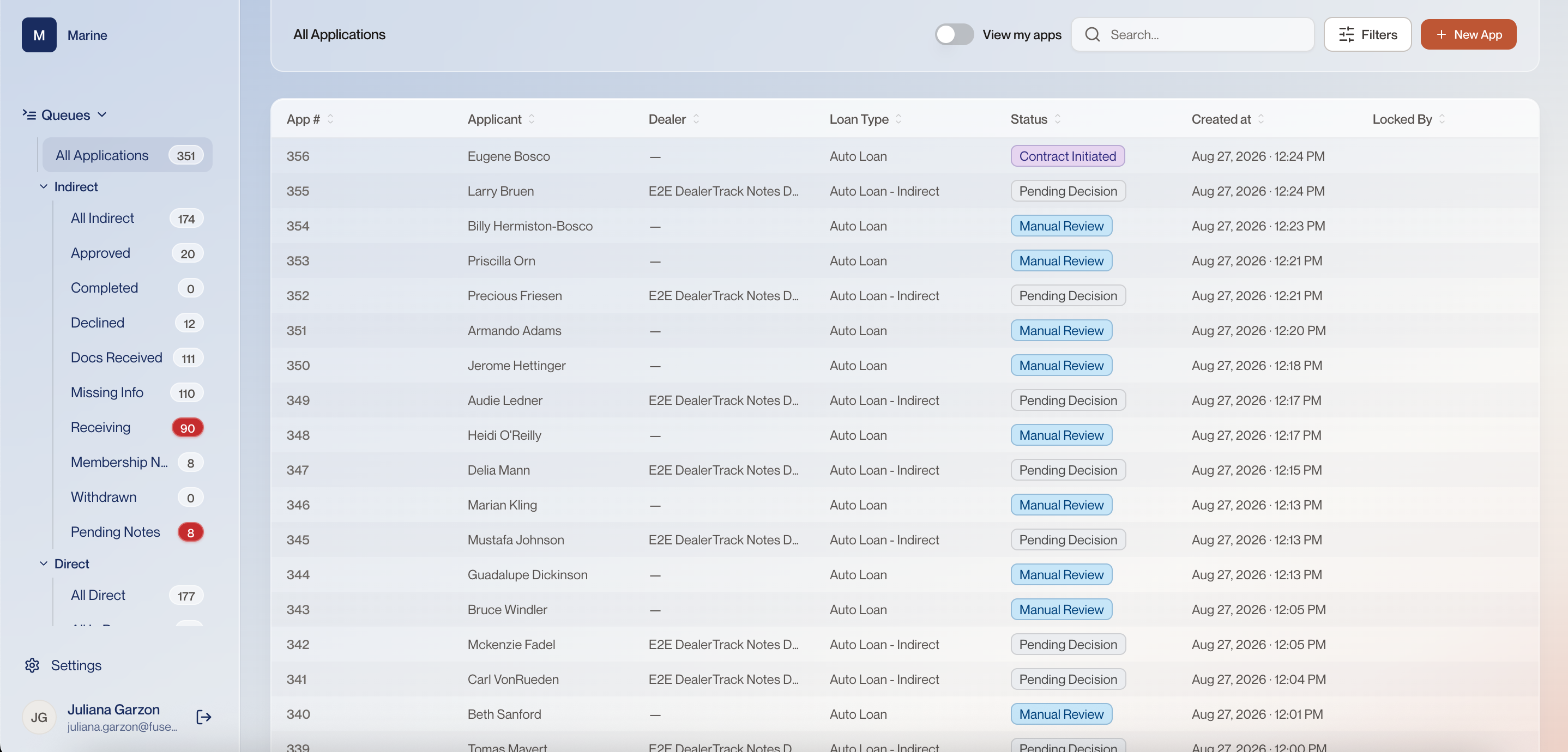
Reference · Reference: All Applications Reference: All Applications The screen you land on when you sign in. Come here for the meaning of a queue, a count, a status pill or a filter, rather than the morning routine that uses them. One thing you will never find in any queue is an employee application — those are kept out of the queues entirely. The Status column inside Approved holds only Manual Approved and Manual Countered pills, which is the view showing its filter. An outcome view can be empty, and that means no file has reached that state yet — not that something is broken. New App, at the top right, offers only Auto Loan in its dropdown, and it opens a Create Application form with General, Primary Borrower and an Add for a co-borrower.
All Applications 1 View my apps Switches the list to your own applications — the ones you have locked. Off, you are looking at everyone's work. This is one of the four ways to find an application: page through the list, switch to your own, filter, or search. Start here when you are picking up where you left off. 2 Search Find one application by applicant name or application number without changing the queue you are in. Two applications from the same applicant is common. Searching by the App # from the first column is the only way to be sure you opened the right one. Watch out: Search looks inside the current list. Clear the queue filter if a file is missing. 3 Filters Narrow the list on status, loan type — auto loan, auto loan direct, credit card or personal loan — applicant name, dealer name, and created date. A queue is a starting point; filters are how you carve your own working list out of it for the day. 4 New App Keys an application by hand. The dropdown offers only Auto Loan, and the Create Application form behind it is where the record is filled in. Marine's applications arrive from the dealer through DealerTrack, so this is the exception: it exists for the case where a file has to be entered by hand rather than received. 5 Queues The whole panel down the left is the Queues tree. It holds the default queue at the top and, below it, the two branches an application can arrive through. Every session starts here. A queue is a view of the same applications, so nothing moves between queues — a file is wherever it matches. 6 All Indirect This view appears in the environment but is not one of the Indirect queues the handbook describes. 7 Approved Applications whose decision came back an approval. In this capture it holds only files at Manual Approved and Manual Countered. It is proof that a queue is a filter on status: the statuses inside it are exactly the approving ones, and nothing else appears. Watch out: An approval is good for 30 days. After that the status becomes “Approved, Expired” on its own and the deal has to be run again, so a file sitting here is not waiting indefinitely. 8 Completed Applications that have run all the way to the end of the lifecycle. Completed is an informative queue — it is there to show you what has finished, not to hand you work. 9 Declined Applications whose decision came back a decline, and only those. Same rule as Approved, from the other side: one status in, everything else out. 10 Withdrawn Applications pulled back before a decision was reached. It closes out the seven Indirect queues, and like Completed it is informative: an ending to read off, not work to pick up. 11 The queue you are reading The heading above the list always names the queue currently selected in the tree. On arrival that is All Applications, which carries no filter at all. It is the one place that tells you whether the list in front of you is everything or a filtered slice of it. 12 What a row tells you Each row carries the App #, the applicant, the dealer, the loan type, the status, when it was created and who has it locked. Every column header sorts the list. Everything else starts by finding a file here, and these columns are what you find it by. 13 All Applications A queue is a view, not a separate place applications live — it is the same list, grouped. All Applications is the default and carries no filter at all; every other queue below it groups by a status or by a condition such as missing documents or missing information. Nothing moves between queues. An application shows up wherever it matches, so a file you cannot find in one queue has not gone anywhere. 14 Indirect Applications that came in through a dealer. The dealer submits on the borrower's behalf, so the Dealer column is filled in and the Loan Type reads Auto Loan - Indirect. This is Marine's business. Marine begins with Indirect Auto, so in practice this is where your work is. 15 Direct Applications a borrower brought to the lender themselves, with no dealer in the middle. Not applicable to Marine. The product supports a direct channel, but Marine does not lend that way — this tree stays empty. 16 Docs Received Applications grouped by a condition rather than a status: documents have come in and are waiting to be worked. Docs Received is an action queue: a count here is paperwork sitting in front of somebody, not a total to read off. 17 Missing Info Applications that cannot proceed because information is missing from the file. Missing Info is an action queue: a count here means somebody has to go and chase what the file is missing. 18 Receiving Applications still arriving — grouped by where they are in intake. A number that stays in the badge means intake has stalled on something rather than passing through. 19 Membership Needs Review This view appears in the environment but is not one of the Indirect queues the handbook describes. 20 Pending Notes This view appears in the environment but is not one of the Indirect queues the handbook describes. 21 Action queues and informative queues Every queue is one of two kinds. An action queue holds work that needs a person and is picked out in colour; an informative queue is shaded plain grey and is there so you can see where things stand. Colour tells you where somebody has to do something — read it as a call to act, not as a ranking of which list is longest. 22 App # The application number. It is the one identifier that never changes and never repeats — quote it in notes, emails and escalations. Names repeat. Two Bosco applications are visible on this very screen. The App # is how you prove you worked the right file. 23 Dealer The dealership that submitted the application. A dash means there is no dealer — it came in direct. Direct applications are created in the Journey by the applicant; indirect ones arrive from DealerTrack or RouteOne, which is why some rows carry a dealer and some do not. This column is the quickest way to tell the two channels apart without opening anything, and it tells you where the data came from before anyone touched it. 24 Loan Type The product. “Auto Loan” is direct; “Auto Loan - Indirect” came through a dealer. 25 Status — the lifecycle seen from outside Every pill in this column is a point in one lifecycle: underwriting, then approved, then contract initiated, then the funding states, then booked. Pending Decision and Manual Review are underwriting. Contract Initiated has already moved past it. Where an application stands decides what you can do to it — including which outcomes the status dropdown will even let you pick. Walk “How an application moves through its life” for the whole sequence. 26 Contract Initiated The decision is behind it and the contract has been started. Underwriting is done with this one; it now belongs to Funding. If you see this on a file you were about to decide, stop. Someone has already moved it forward. 27 Pending Decision The application is waiting on a decision. This is the status that means the work is yours. Pending Decision is the queue that actually needs a person. Everything else on this list is either done or waiting on someone outside underwriting. 28 Manual Review The automated rules could not settle this one on their own and have handed it to a human to look at. Manual Review is not a decline. It means the rules stopped short, and the reason will be on the Decision page under Failed Rules. 29 Created at When the application landed. The list is sorted newest first, so the oldest work is at the bottom. Age is the thing the dealer feels. Working top-down means working the newest first — flip the sort when you are clearing a backlog. 30 Locked By Who holds the lock on the application. An application locks to one person, and only that person can modify it. Everyone else can open it and read it, but cannot change anything. Blank means nobody is in it. This is what stops two people from working the same file at once. Watch out: If a name other than yours is in Locked By, that person is in it. A lock releases itself after 30 minutes, so waiting is an option as well as messaging them.