Reference · Reference: the Decision Page Reference: the Decision Page The page you land on when you open an application, and the page every decision is made on — every card on it, the status control, and how the page reads once it has been declined or a contract has started. At go-live only a short allow-list may auto-decline — an applicant under 18, a bankruptcy within 36 months, and a few conditions specific to one channel; R02 minimum age is Auto Decline, the rest Prevent Approval. The Application values are read beside the Policy values they were tested against — a computed DTI against the maximum the policy allows. The checkboxes beside each rule are how several are waived at once. You do not write adverse actions here — you read them to know what the applicant was told. If the outcome you need is locked, the file is not there yet: Contract Initiated only opens once the application has been through Approved. The list changes as the application moves: on a file already in funding this same control is inverted — the underwriting states padlocked and the funding states open.
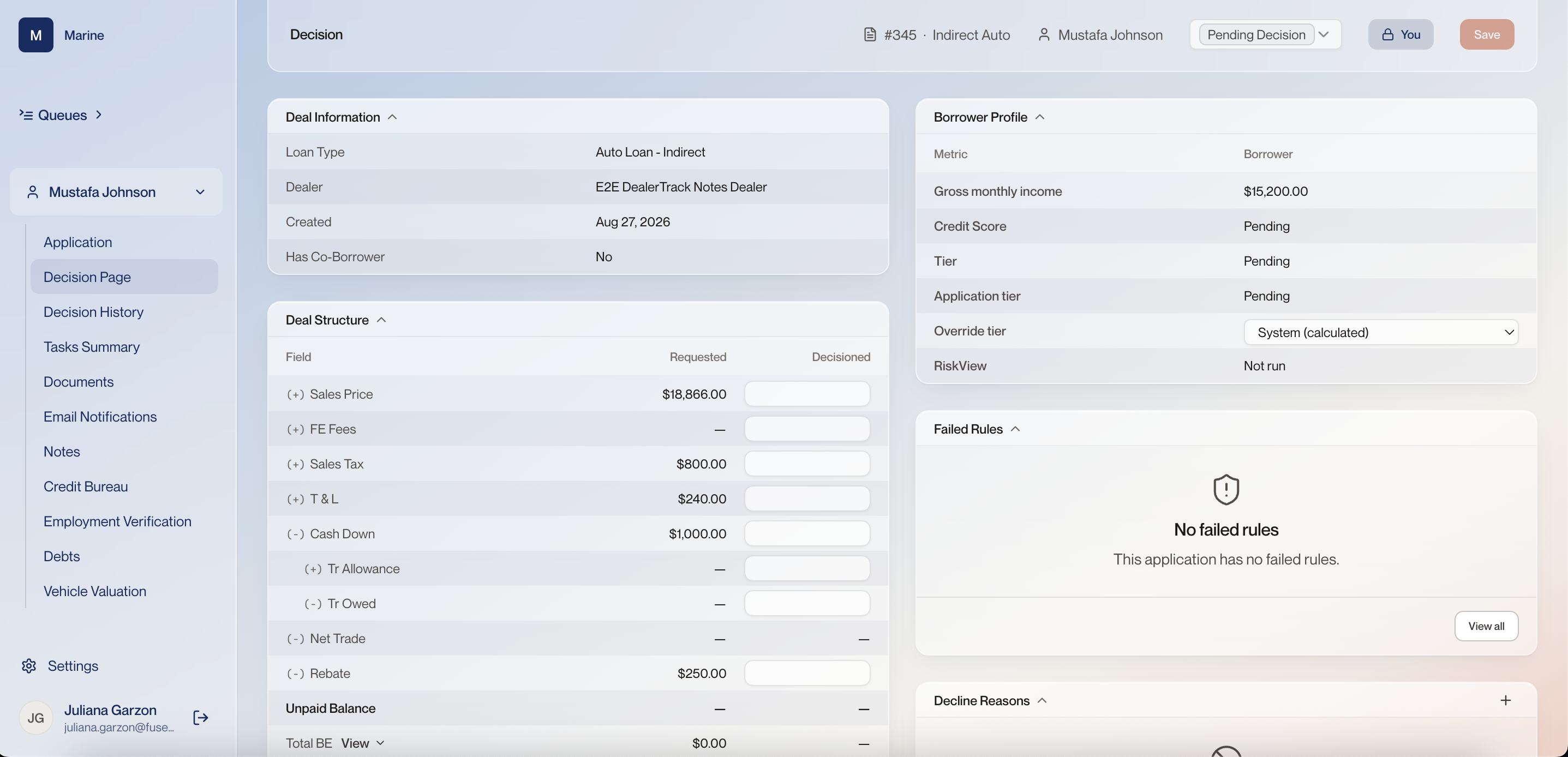
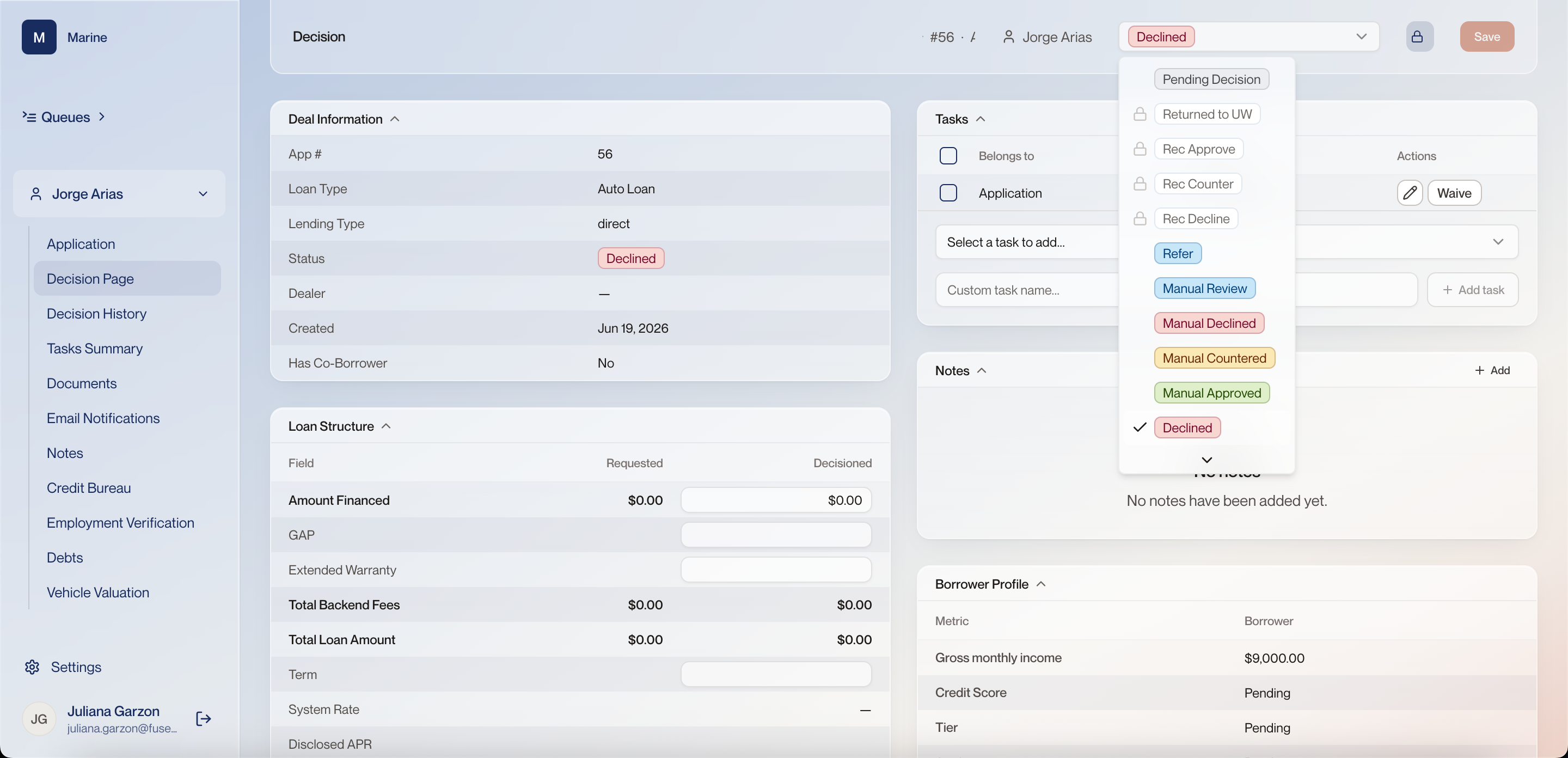
Decision page 1 #345 · Indirect Auto The application number and channel, pinned to the header so it stays visible as you move between sections. Every section on the left nav belongs to this one application. This is your confirmation you are still in the right file. 2 Applicant The borrower on the application. 3 Status The application status, and the control you change to record a decision. It reads Pending Decision until someone sets it. This dropdown is the decision. Nothing you type elsewhere on the page moves the application until the status changes and you Save. 4 You badge and the padlock button An application is locked while someone is working it. The “You” badge says it is locked to you, and the padlock button next to Save is how you unlock it so the fields can be edited again. Locking is what stops two people from typing into the same file at once. Unlocking is a deliberate act, not something that happens when you click into a field. Watch out: If a name other than yours is showing, that person is in it. A lock releases itself after 30 minutes, so waiting is an option as well as messaging them. 5 Save Commits what you have changed on this page, including the status. Nothing is recorded until you press it. Navigating to another section in the left nav does not save. Save before you leave the Decision page. 6 Application The submitted application itself — what the borrower or the dealer actually sent you. 7 Decision Page Where the decision is made. Highlighted because it is the section you are on. 8 Decision History Every decision recorded on this application, in order. The audit trail of who decided what and when. A re-decision does not overwrite the last one — it appends. This is where anyone reviewing your work will look. 9 Tasks Summary The outstanding work items on this application, in one list. 10 Documents Everything uploaded against the application — pay stubs, insurance, the bill of sale. A stipulation is cleared with a document. This is where you confirm one actually arrived rather than taking someone's word for it. 11 Email Notifications The emails the system has sent on this application, and to whom. Before you tell a dealer nothing was sent, check here. The notice usually went out and went unread. 12 Notes Free-text notes from anyone who has touched the file. Notes are how the next person understands a decision that is not obvious from the numbers. Write the one you would want to find. 13 Credit Bureau The credit pull for this application. Applicant and co-applicant are pulled separately and both appear here. The Borrower Profile on this page shows the score. The Credit Bureau section shows the report it came from — go there when the score does not match the story. 14 Employment Verification Where the stated employment and income are checked against evidence. Gross monthly income drives the whole deal structure. This is the section that says whether it was verified or just stated. 15 Debts Every debt for both parties, itemised: where each one came from, whose it is, and what it costs a month. It is also where an adjusted payment is entered. DTI and PTI are computed from what is on this tab. Adjust a payment here and the ratios the decision rests on change with it. 16 Vehicle Valuation What the collateral is worth, and which source that value came from. 17 Deal Information The shape of the deal in four lines: what product it is, who sent it, when it arrived and whether there is a second borrower. Read this card before the numbers. It tells you which rules the application is being judged against. 18 Loan Type Auto Loan - Indirect: this one came from a dealer rather than direct from the member. 19 Dealer The submitting dealership. Empty on a direct application. 20 Has Co-Borrower Whether a second borrower is on the application. “No” here means there is one credit pull to review, not two. On a joint application the applicant and the co-borrower are pulled separately, so a decision made before the second pull is back rests on half the file. 21 Deal Structure The money. Every line that adds to or subtracts from the amount being financed, ending in the balance. This is what you are actually approving. The status dropdown records the answer; this card is the question. 22 Requested What was asked for — the numbers as they came in from the dealer or the applicant. Read-only. Requested is the record of what was submitted. It never changes, which is what makes the comparison with Decisioned meaningful. 23 Decisioned What you are approving. The empty inputs are yours to fill; leave one blank and the requested figure stands. Counter-offering happens here. Approving a smaller amount than requested is a Decisioned number, not a note to the dealer. Watch out: Changing a Decisioned figure changes the deal. Say why in Notes so Funding and the dealer are not guessing. 24 Sales Price The price of the vehicle before anything is added or taken off. 25 FE Fees One line of the deal structure. The sign in front of the row says whether it adds to or comes off the amount financed. You do not need to work through these line by line. Read the column totals — what the dealer requested against what came back Decisioned. 26 Sales Tax Tax on the sale, added to the amount financed. 27 T & L One line of the deal structure. The sign in front of the row says whether it adds to or comes off the amount financed. You do not need to work through these line by line. Read the column totals — what the dealer requested against what came back Decisioned. 28 Cash Down What the borrower is putting in themselves. A subtraction — the minus sign in front of the row tells you which way each line moves. 29 Tr Allowance One line of the deal structure. The sign in front of the row says whether it adds to or comes off the amount financed. You do not need to work through these line by line. Read the column totals — what the dealer requested against what came back Decisioned. 30 Tr Owed One line of the deal structure. The sign in front of the row says whether it adds to or comes off the amount financed. You do not need to work through these line by line. Read the column totals — what the dealer requested against what came back Decisioned. 31 Net Trade One line of the deal structure. The sign in front of the row says whether it adds to or comes off the amount financed. You do not need to work through these line by line. Read the column totals — what the dealer requested against what came back Decisioned. 32 Rebate A manufacturer or dealer rebate applied against the balance. 33 Unpaid Balance What is left to finance once every line above has been added and subtracted. This is the number the loan is written for. If it does not match what the dealer told the member, the conversation happens now, not at funding. 34 Total BE One line of the deal structure. The sign in front of the row says whether it adds to or comes off the amount financed. You do not need to work through these line by line. Read the column totals — what the dealer requested against what came back Decisioned. 35 Borrower Profile The borrower's side of the decision, in three columns: borrower, co-borrower, and the two combined. Gross monthly income, credit score and tier for each. The combined column only fills in once both pulls are back. Fields reading “Pending” mean the pull has not come back. 36 Gross monthly income Stated monthly income before deductions. Whether it is stated or verified is settled in Employment Verification, not here. 37 Credit Score The score from the bureau pull. “Pending” means the pull has not returned yet. A pending score is why an application can sit in Manual Review with no failed rules — there is nothing to judge yet. 38 Tier The tier the borrower falls into, worked out from the FICO score against Marine's bands: Premier 830 and up, A++ 790–829, A+ 750–789, A 710–749, B 670–709, C 640–669, D 600–639, E 599 or below. An applicant with no usable score at all lands in F-Military or F-Civilian, split on whether they are military. Here it reads Pending because the pull has not returned. Approval leans heavily on the tier. It is the short answer to how this borrower compares with everyone else you lend to. Watch out: An F tier is not the bottom of the scale in the way E is — it means no score came back to place them, which is a different conversation. That is what the F-CIVILIAN value on the “Decision page (contract initiated)” screen is saying. 39 Application tier The tier as it stands on this application — the classification underwriting landed on when it ran, from the application data and the bureau pull. This is the tier the rest of the page was computed against: the term, the system rate and the ratios all follow from it. 40 Where the application tier comes from The system reads the applicant's own FICO score and assigns the tier from it. The co-borrower's tier is shown beside it but is not what the application tier is taken from. It means a strong co-borrower does not move the application into a better band, and a weak one does not drag it down — the primary applicant sets it. 41 Override tier The tier can be overridden here by someone holding the permission for it. Open the dropdown on the Borrower Profile and set a different tier from the one the score produced. An override is a deliberate exception, not the everyday path, and it shows up on the page only as Tier and Application tier no longer matching. Watch out: An override is only readable by the difference between those two lines. Say why in Notes — the dropdown does not record a reason. 42 RiskView An alternative-data risk score, obtained from a separate provider alongside the credit bureau pull. The field holds the score once a RiskView request has been made for the application, and reads Not run until then. It sits on the Borrower Profile alongside the bureau score. Read it as one input to the decision, not as the decision. 43 Failed Rules Which of the configured underwriting rules this application did not pass. Here it reads “No failed rules” — nothing tripped. The rules are Marine's own; there is no universal set. They live in Settings under underwriting, where an administrator with permission can read them, edit one or add a new one. Some run before the bureau pull — under 18, a state Marine does not lend in — and some run after it, on credit data: a minimum vantage score, a cap on active debts, no bankruptcy in the last five years, at most one mortgage. This card is the reason an application landed in Manual Review. Read it before you form an opinion; the rules have already done most of the work. Each failed rule carries a tag: Prevent Approval sends the application to Manual Review, Auto Decline declines it outright. Watch out: Severity beats volume. Thirty Prevent Approval rules still leave the application in Manual Review for you to judge; one Auto Decline rule declines it on its own. Count the tags, not the lines. And no failed rules is not the same as approved — it means nothing blocked it, and the call is yours. 44 Decline Reasons The reasons attached to a decline. Add them with the plus on the right of the card header. These reasons are what the adverse action notice is built from. A decline without them is not a complete decline. Watch out: Write reasons that stand on their own. The applicant reads a version of this, not your note. Decision status dropdown 1 Open the status list Clicking the status in the header opens the full list of outcomes. Which of them you can pick depends on the phase the application is in right now — anything padlocked does not belong to this phase. The names also tell you who set a state: those with “Manual” were set by a person from inside the system, the rest by the underwriting engine. There is no separate decision screen — the whole decision is this one control. And the list is not the same on every file: open two applications sitting in different phases and you are offered different options. 2 Pending Decision The state an application sits in while it is waiting on an underwriter. This is what #56 was before the decline — the previous status recorded in Decision History. 3 Padlocked options — Returned to UW, Rec Approve, Rec Counter, Rec Decline A padlock means that state is not available from where this application currently stands. Decision states are enabled by phase: an application in underwriting is offered the underwriting states; once approved it can move to Contract Initiated; from there it moves on to the funding states, and Booked is the end. States are locked on a file when they do not belong to the phase it is in. The padlock is not a permission problem, and it does not mean the system reserves that state for itself. It means: not reachable from here. That is why the same dropdown looks different on two different applications. Watch out: If the outcome you need is padlocked, check where the application sits in its life before you go looking for another way to set it. 4 The funding states Once an application reaches funding, the underwriting states lock and these unlock: Contract Initiated, Pending Docs, Returned to Funding, Returned to Dealer, Book & Hold, and Booked. The “Decision status dropdown (funding)” screen shows exactly that. The two sets never overlap. Which half of the list is available tells you which side of the handover the file is on. 5 Exits that are not underwriting decisions Three outcomes end an application without anyone declining it: Contract Declined when the customer rejects the offer, Expired when nobody accepts within the window, and Cancelled when the customer withdraws. An application that ends this way was not turned down. Reading one of these as a credit decision misreports how the pipeline is performing. 6 Rec Approve, Rec Counter, Rec Decline — and Returned to UW “Rec” is short for recommended. Automatic approvals are deliberately switched off for the first weeks after go-live, so nothing approves itself: the system states the verdict it would reach and a person confirms it. Returned to UW is separate — it sends a file back to underwriting for another look when something found at contract or funding means the deal has to be revisited. A Rec status is the system's opinion, not a decision, so the file is still waiting on you even though it reads like an answer. Watch out: These are set automatically while auto-decisioning is off. Once it is switched on they are expected to stop appearing, so do not build a habit around them. 7 Refer Refer flags a file for a person to look at, outside the normal automatic flow. It can be set from any status at any point, and a file carrying it lands in the Receiving queue. It is the way to pull a deal out of the machinery for human attention without recording an outcome on it. 8 Manual Review, Manual Declined, Manual Countered, Manual Approved The four outcomes a person sets by hand from inside the system. On #56 none of them carries a padlock, so they are available from the phase this application is in. “Manual” tells you who made the call. The padlocks tell you what the phase allows. They are two different things read off the same list. Watch out: Manual Countered is on the list but is not part of how Marine works. Marine's policy is approve or decline; countering an application is available in the interface and is not something you are expected to do. 9 Manual Declined vs Declined Declined is set by the underwriting engine: the rules ran on the application and declined it on their own. Manual Declined is set by a person from inside the system — an application that came back Approved or landed in Manual Review, which an underwriter then opened and declined. Approved and Manual Approved pair the same way. The word Manual tells you who made the decision: a person, not the rules. That is the answer to “why did this application end up in this state”, visible at a glance. 10 Declined (current value) The checkmark marks the value the application currently holds. On #56 that is Declined. The checkmark is the only thing in this list that tells you where the file already stands, rather than where you could send it. 11 More options A chevron at the foot of the list means there are further statuses below. The visible options are not all of them. Scroll before you settle for the nearest match. Decision page (declined, indirect) Decision page (declined, indirect)
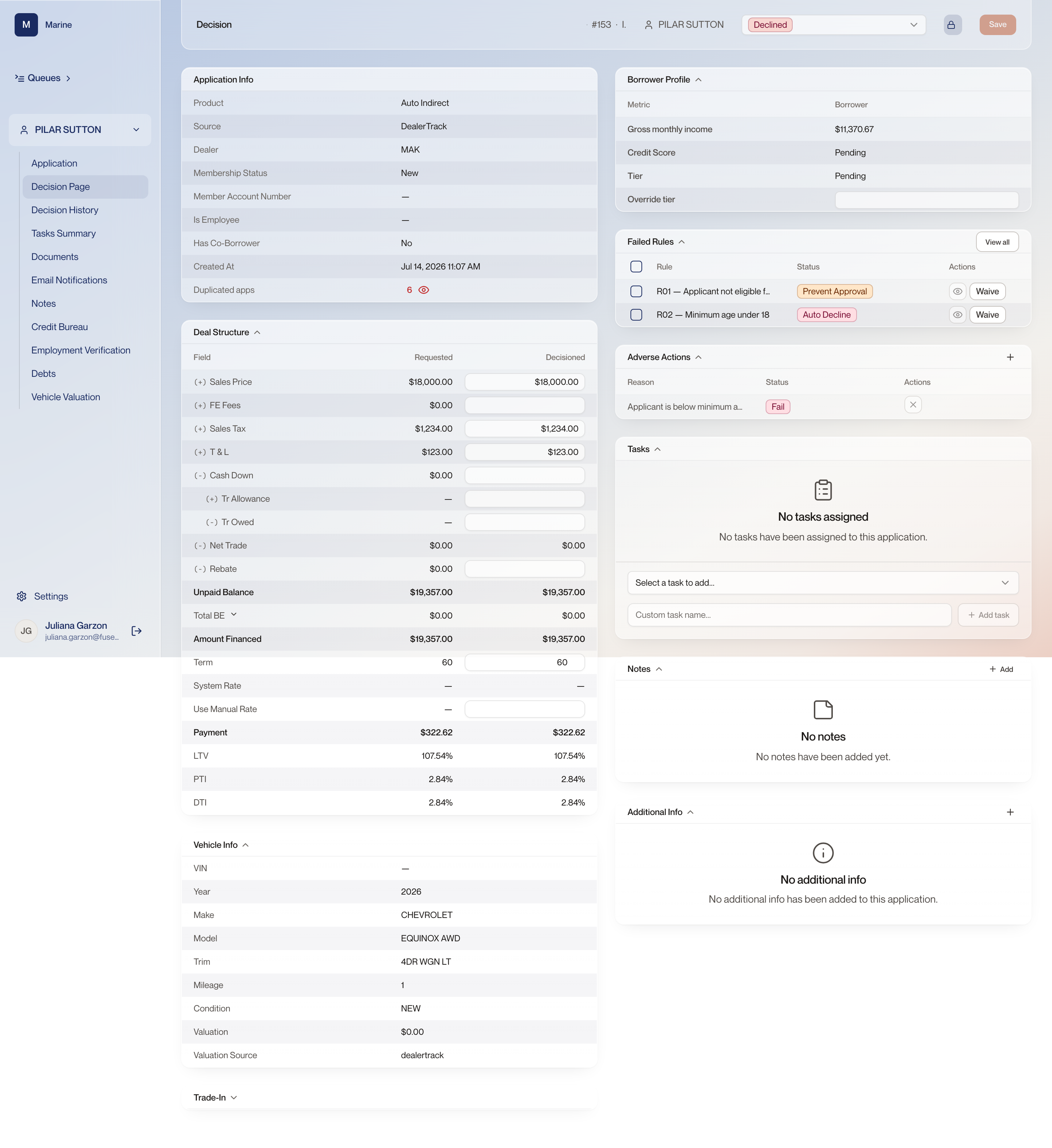
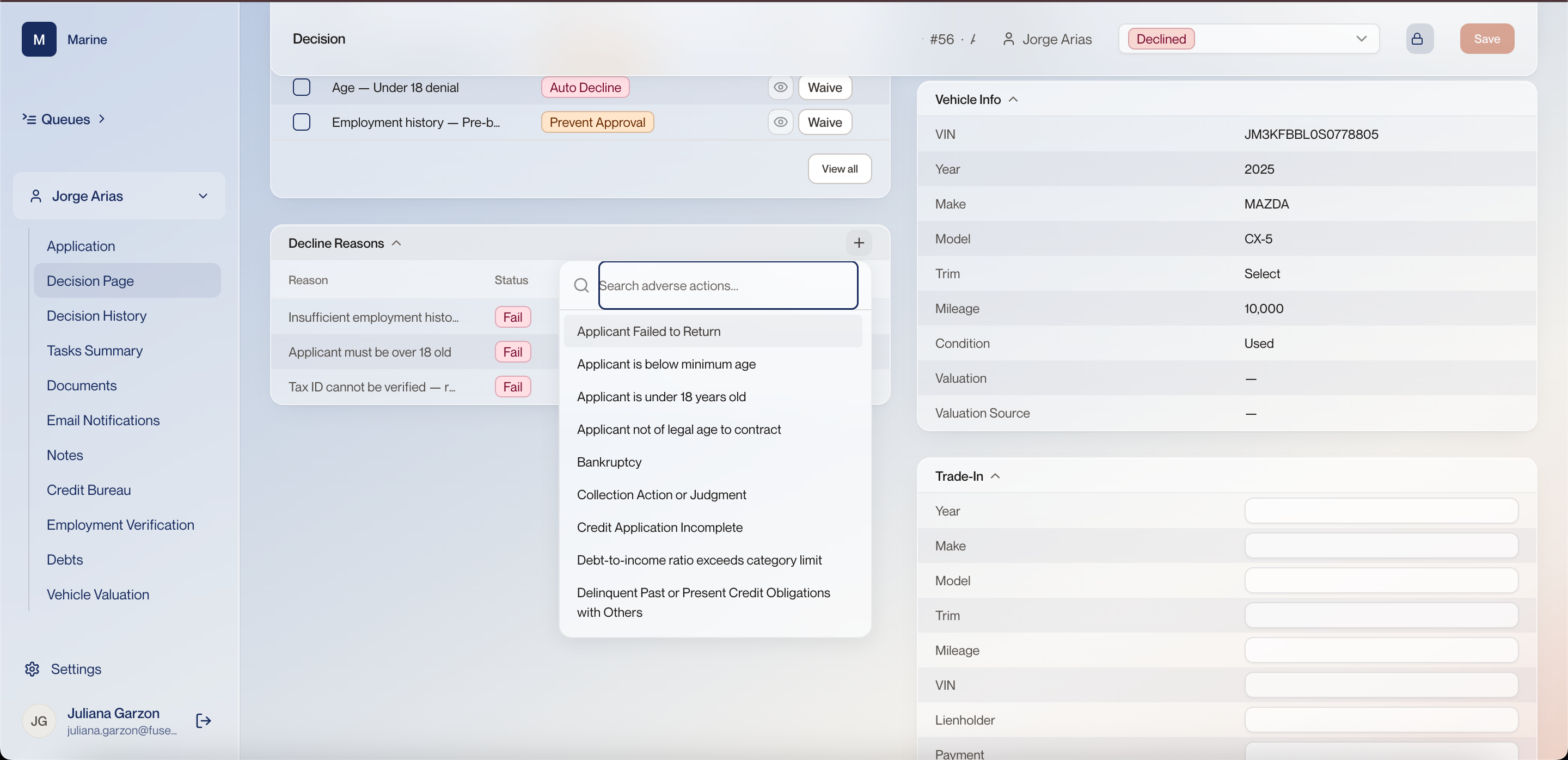
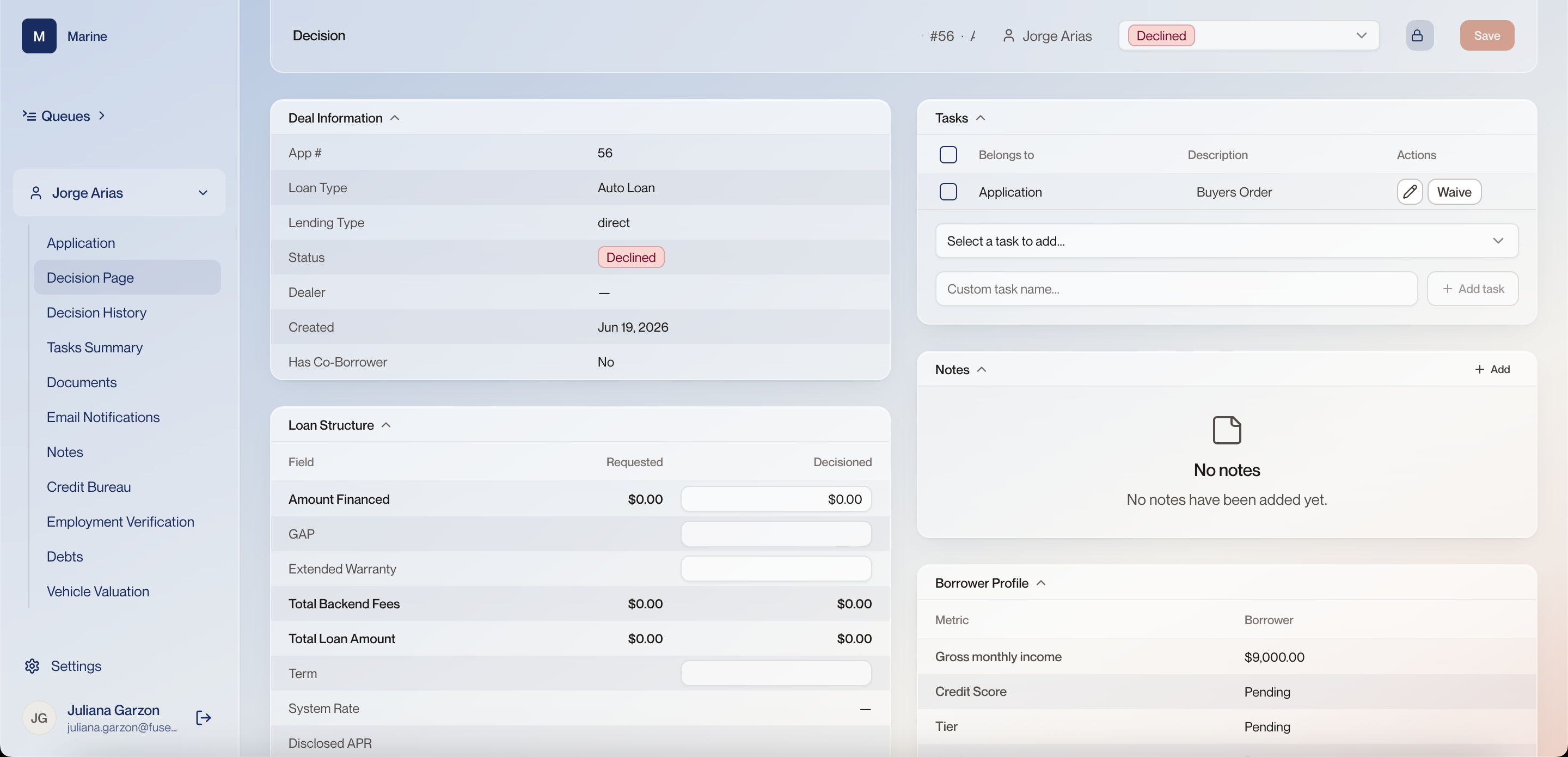
1 Status control The decision itself, shown as a dropdown in the header. On this file it reads Declined, so the outcome has already been recorded. This is the control that moves the application. Everything else on the page is what you read before you touch it. 2 Application Info Where the file came from and who it belongs to: Product Auto Indirect, Source DealerTrack, Dealer MAK, Membership Status, Member Account Number, Is Employee, Has Co-Borrower, Created At, and a count of duplicated apps. This is the first card to read, because it frames everything below it. Indirect means a dealer submitted the deal and is waiting on the answer; Has Co-Borrower tells you whether a second credit pull belongs on the file. 3 Membership Whether the applicant already holds an account with the lender, and the account number if they do. A file with no account number has no membership yet. A non-member has to become one before the loan can be funded, so this pair decides whether a membership task lands on the file later. 4 Duplicated apps A count of other applications the system matched to this one, with an eye control that opens them. Deciding one of a set of duplicates without looking at the others is how the same borrower gets two answers. Open the list before you record anything. 5 Deal Structure The deal line by line in two columns, Requested and Decisioned: sales price, fees, tax, T&L, cash down, trade allowance and owed, rebate, unpaid balance, total BE, amount financed, term, system or manual rate, payment, and the LTV, PTI and DTI those figures produce. Requested is what came in from the dealer; Decisioned is what the lender is prepared to do. The ratios at the foot are what the rules are measured against, which is why a change higher up the card changes the answer. 6 Vehicle Info and Valuation Source The collateral as submitted — VIN, year, make, model, trim, mileage, condition — with the valuation held against it and the source that produced it, here dealertrack. On an indirect application the valuation arrives with the deal rather than being run by hand, and the source names who produced it. A valuation of $0.00 means the ratios have no collateral value to be read against. 7 Borrower Profile The figures the borrower is judged on — gross monthly income, credit score and tier — with an Override tier field underneath. Tier comes from score ranges Marine configures, and the override is how an underwriter places a borrower in a different band deliberately. Score and tier reading Pending means the bureau result has not landed, so nothing here was decided on a score. 8 Failed Rules and their severities The rules that failed, each with a severity tag and a Waive button. Here R01 is tagged Prevent Approval and R02, minimum age under 18, is tagged Auto Decline. View all opens the rules that are not shown. The tag is what the rule does when it fails, and the two are not equivalent: an Auto Decline outranks any number of Prevent Approval rules. Read the tags before you assume the file is still open to judgement. Watch out: An application only moves to its next state once every rule on it is in a waived state. One rule left unwaived and the status will not move. 9 Waive Waiving is making an exception on the application: the rule fired, but it will not be counted for this applicant. Exception is the word the team uses, and you can make them one rule at a time or in bulk. The exception and the comment written with it are recorded in Notes. Failed Rules and Notes are two halves of the same story, and Notes is what an audit reads back. Watch out: A waiver survives a re-decision — running the application again leaves the rule waived. 10 Adverse Actions The reasons recorded against the decline, each with a status and a control to remove it, and a plus to add another from the standard list. Here the single entry, the applicant being below the minimum age, is the one produced by the R02 rule directly above it. This card is what the notice sent to the applicant is built from, and the entry lines up with a failed rule rather than with anything anyone typed. That is why the reasons on one decline read the same as the reasons on the next. 11 The card is called Adverse Actions Marine sees this card as Adverse Actions. An older capture in the reference section shows it reading Decline Reasons — that was the previous wording. It is the same card either way; only the heading changed. 12 Tasks Conditions attached to the application, with a picker to add a standard task and a box to name a custom one. Tasks are generated automatically once a contract is initiated, and which ones appear depends on the applicant. A declined file has none, because nothing reached that point. 13 Notes The running log on the application, with an Add control in the card header. The adverse actions say what the outcome was. Notes is the only place that carries why it was judged that way, and every exception made on the file lands here. 14 Application navigation The pages of one application: Application, Decision Page, Decision History, Tasks Summary, Documents, Email Notifications, Notes, Credit Bureau, Employment Verification, Debts and Vehicle Valuation. This nav stays with the file. A decline is worked across several of these pages, and moving between them does not change the application. Decline Reasons 1 Failed rule — Auto Decline “Age — Under 18 denial” failed, and the rule is tagged Auto Decline. Only a short allow-list of conditions is permitted to decline a file on its own — an applicant under 18, a bankruptcy within the last 36 months, and a few CUDL-specific credit conditions. Everything else that fails sends the file to a person instead. Watch out: So an application that looks bad can still arrive in Manual Review rather than declining itself, by design. And some things are never caught here at all: a straw purchase cannot be detected automatically and stays a human judgement call. 2 Failed rule — Prevent Approval “Employment history — Pre-b…” failed, tagged Prevent Approval rather than Auto Decline. Two failed rules on the same file can carry different weight. Read the tag before you assume the decision was made for you. 3 Waive a failed rule Waiving is making an exception on the application: the rule fired, but it will not be counted for this applicant. Exception is the word the team uses. You can make them one rule at a time or in bulk. The exception and the comment you write with it are recorded in Notes. That is the trace of what was set aside and why, and it is what an audit reads back — Failed Rules and Notes are two halves of the same story. Watch out: A waiver survives a re-decision: run the application again and the rule stays waived. Waiving commits the file, rather than clearing one run. 4 What waiving unblocks An application only moves to its next state once every rule on it is in a waived state. Leave one unwaived and the status will not move. Waiving is not a note to yourself. It is the thing that clears the way for the decision, which is why a file can look ready and still refuse to move on. 5 View all Opens the full list of rules that ran, not just the ones shown here. The card shows the first few. If you are writing up a decline, the full list is the one to read. 6 Recorded decline reasons Three reasons are recorded on #56, each with status Fail: insufficient employment history, applicant must be over 18, and tax ID cannot be verified. This table is the record of why the application was declined. It is what the adverse action notice is built from. 7 A reason is required, not optional An application cannot be moved to Declined until an adverse action reason is attached to it. The system refuses the status change while this card is empty. It means the record of why can never fall behind the decision, because the decision will not go through without it. Watch out: If a decline will not save, look here before anywhere else — the missing reason is the usual cause. 8 Add a reason The plus on the Decline Reasons card opens the adverse-action picker. Reasons are added one at a time from a list. There is no free-text box here. 9 Adverse-action picker A searchable list of standard adverse actions — applicant below minimum age, bankruptcy, collection action or judgment, incomplete credit application, debt-to-income over the category limit, delinquent obligations, and more. Every decline is described in the same words as every other one, because the words come from this list rather than from whoever worked the file. Watch out: Several entries read almost the same — “below minimum age”, “under 18 years old” and “not of legal age to contract” are three separate options. Search, then read the whole line. Decision page (declined) 1 Status control The decision itself, shown as a dropdown in the header. On #56 it reads Declined. This is the control that moves the application. Everything else on the page is what you read before you touch it. 2 Deal Information App # 56, Auto Loan, lending type direct, status Declined, no dealer, created Jun 19 2026, no co-borrower. Direct means the applicant came to the lender rather than through a dealer, so no dealer is waiting on this outcome. 3 Loan Structure Requested against Decisioned, line by line: amount financed, GAP, extended warranty, backend fees, total loan amount, term, system rate and disclosed APR. On a declined file these figures stay at zero. Nothing was structured, because nothing was approved. 4 Tasks Conditions attached to the application. #56 carries one — a Buyers Order on the Application — which can be edited or waived. Tasks are how outstanding items are tracked on a file. An open task on a declined application is a loose end somebody should close. 5 Notes Free text on the application. On #56 it is empty — no notes have been added. Notes are where the reasoning behind a call lives. The decline reasons say what the outcome was; nothing here says why it was judged that way. 6 Borrower Profile The figures the decision is judged on: gross monthly income $9,000.00, credit score Pending, tier Pending. Pending means the bureau result has not landed. This application was declined on rules, not on a score. Decision page (contract initiated) Decision page (contract initiated)
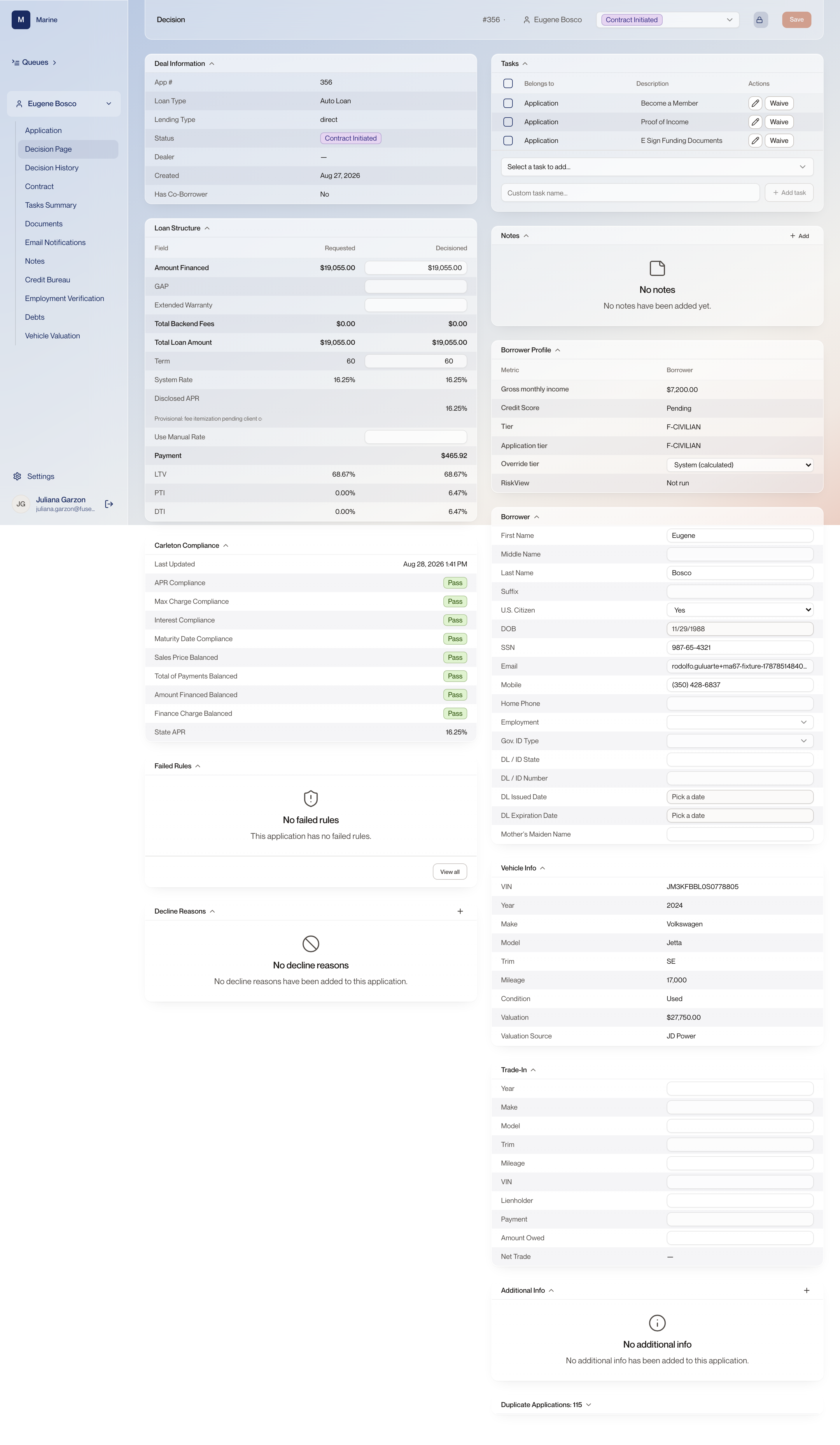
1 Status: Contract Initiated #356, Eugene Bosco, Contract Initiated. This is the Decision page after an approval has been accepted, not while it is being decided. Everything else on this page is the finished article: the numbers underwriting computed and the work funding now has to do. 2 Contract in the left nav The left nav on this application carries a Contract section, between Decision History and Tasks Summary. Underwriting-stage applications do not have it. Its presence is a quick read on where the file stands. 3 Loan Structure, fully populated Amount Financed $19,055.00, Term 60, System Rate 16.25%, Disclosed APR 16.25%, Payment $465.92, LTV 68.67%, PTI 6.47%, DTI 6.47% — with Requested on the left and Decisioned on the right. This is the first capture where the numbers underwriting computed are actually visible. Requested is what came in; Decisioned is what the lender is agreeing to. Reading them side by side is how you see what underwriting changed. Watch out: PTI and DTI read 0.00% under Requested and 6.47% under Decisioned. The requested column is the customer's ask, not a computed ratio — do not read a zero there as no debt. 4 Payment The monthly payment the structure works out to: $465.92 over 60 months. This is the figure the borrower lives with, and the one PTI is measured against. 5 Borrower Profile — Tier: F-CIVILIAN On the Borrower Profile card, a real tier value at last: this borrower is F-CIVILIAN, and Application tier reads the same. Every earlier capture showed Pending, because the bureau pull had not landed. The tier is what approval leans on, and this is what one actually looks like at Marine. The names are Marine's own — read the value that is on the screen and do not translate it into another lender's numbering. Watch out: Marine's tier names look segment-based rather than numbered. What the naming encodes is not confirmed, so do not infer a ranking from the word. 6 Application tier The tier held on the application, shown beside the tier on the Borrower Profile. They match unless someone has overridden the tier from the Borrower Profile dropdown, in which case the two read differently. When they disagree, a person moved the tier by hand and the rest of the page was computed against the override. Reading both is how you know whether you are looking at the system's assessment or somebody's decision. 7 Duplicate Applications The application information card counts other applications in the system for the same person and expands to list them, whether they appear as applicant or as co-applicant. This is the answer to “am I working the right file”. Names repeat and one person can hold several applications at once, so open the list and check the App #s and dates before you touch anything. Watch out: A high count is not a fraud signal on its own, and the newest is not automatically the live one. 8 The funding tasks, with Waive Three tasks sit on this application: Become a Member, Proof of Income and E Sign Funding Documents. Each has an edit pencil and a Waive button, and below them a picker to add another. These are the same tasks the Tasks Summary screen lists in full. They appeared when the application became Contract Initiated, and nothing funds until they are cleared or waived. Watch out: Waiving is a decision, not a shortcut. Say why in Notes — the next person reads the file, not your reasoning. 9 Failed Rules and Decline Reasons The two cards that carry the automated result: every rule the application failed with its severity, and the adverse action reasons recorded against it. On a file that passed the checks outright they read No failed rules and stay empty. Together they are the written reason for the outcome. Compare a clean file with the declined Decision page, where both cards carry entries, and the shape of each is easy to recognise. Decision status dropdown (funding) Decision status dropdown (funding)
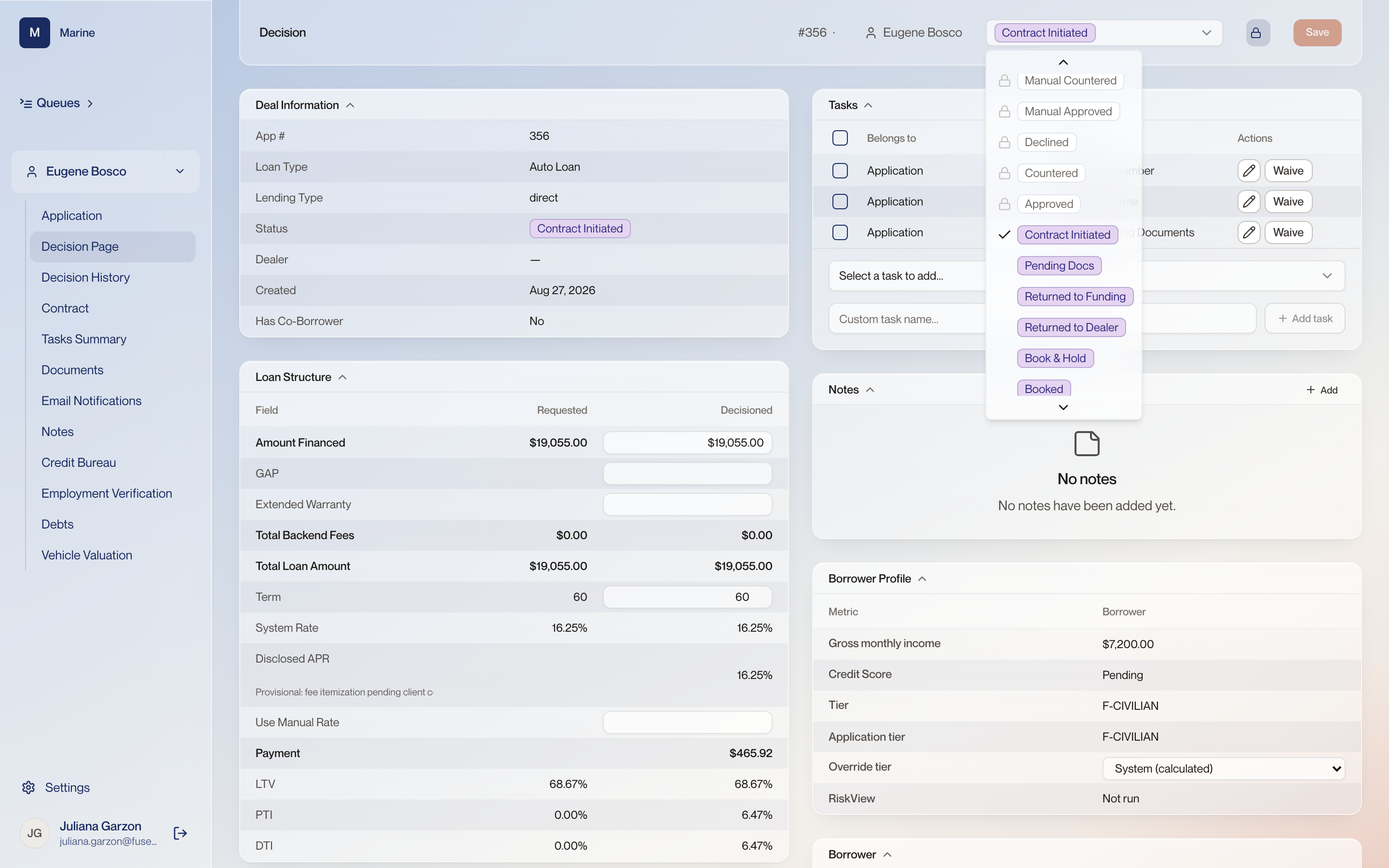
1 Contract Initiated, the current status Application #356 for Eugene Bosco is past underwriting and into funding. The header carries its current status, Contract Initiated, and opening it shows the same control you use to decide an application. One control, two very different lists. The status in the header is the fastest way to tell which side of the underwriting handover a file is on. 2 The underwriting states, now padlocked Manual Countered, Manual Approved, Declined, Countered and Approved all carry a padlock here. On an application still in underwriting these are exactly the states you can pick, though countering is not Marine’s path: the policy is approve or decline. This is the proof that the padlock tracks the phase and not your permissions. Nothing about you changed between the two applications; the phase did. Watch out: Once a file is in funding you cannot quietly re-decide it from this list. Sending it back is its own state — Returned to Funding or Returned to Dealer — and it is recorded. 3 The funding states, now selectable Contract Initiated (checked, the current value), Pending Docs, Returned to Funding, Returned to Dealer, Book & Hold and Booked are all open. None of them carries a padlock. Funding walks four labels in order — Stips Pending, Documents Pending, Ready to Fund, Funded — and someone clicking a button called “Book in Symitar” is what takes it to the last one. Watch out: You will not read the word Booked on your screen; the screen says Funded. Booked is the internal name for the same thing, and it survives only behind the scenes and in the queue's web address. 4 The checkmark A checkmark, not a padlock, marks the value the application is sitting on right now. Read the checkmark before you pick anything. It is the only place in this control that tells you where you are starting from. 5 Book & Hold versus Booked Book & Hold means the deal is ready to book but is being held back deliberately. Booked is the internal name for a fully funded loan. Book & Hold is a decision to wait, not a step that happens on its own — something is holding it, and it will sit there until someone releases it. Watch out: Staff never see the word Booked on screen. The screen says Funded. 6 Contract in the left nav A Contract section appears in the left nav on this application. It is not there while a file is still in underwriting. The nav changes with the phase too. If you are looking for Contract and cannot find it, the application has not reached funding yet.