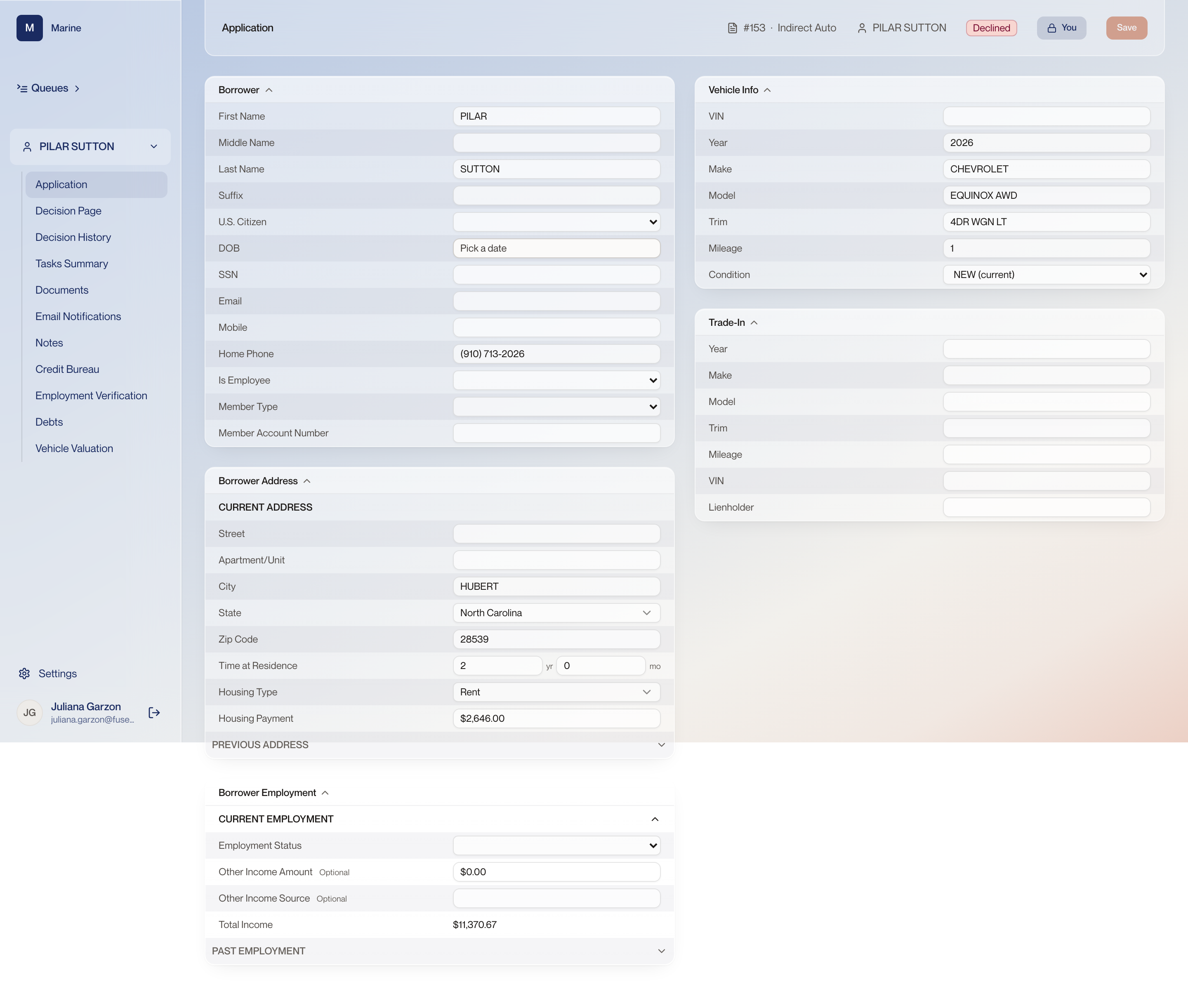
Reference · Reference: Application Reference: Application Everything the dealer submitted, in the order the system stores it. Come here when you need to know where a piece of applicant data lives before you judge the deal built on it.
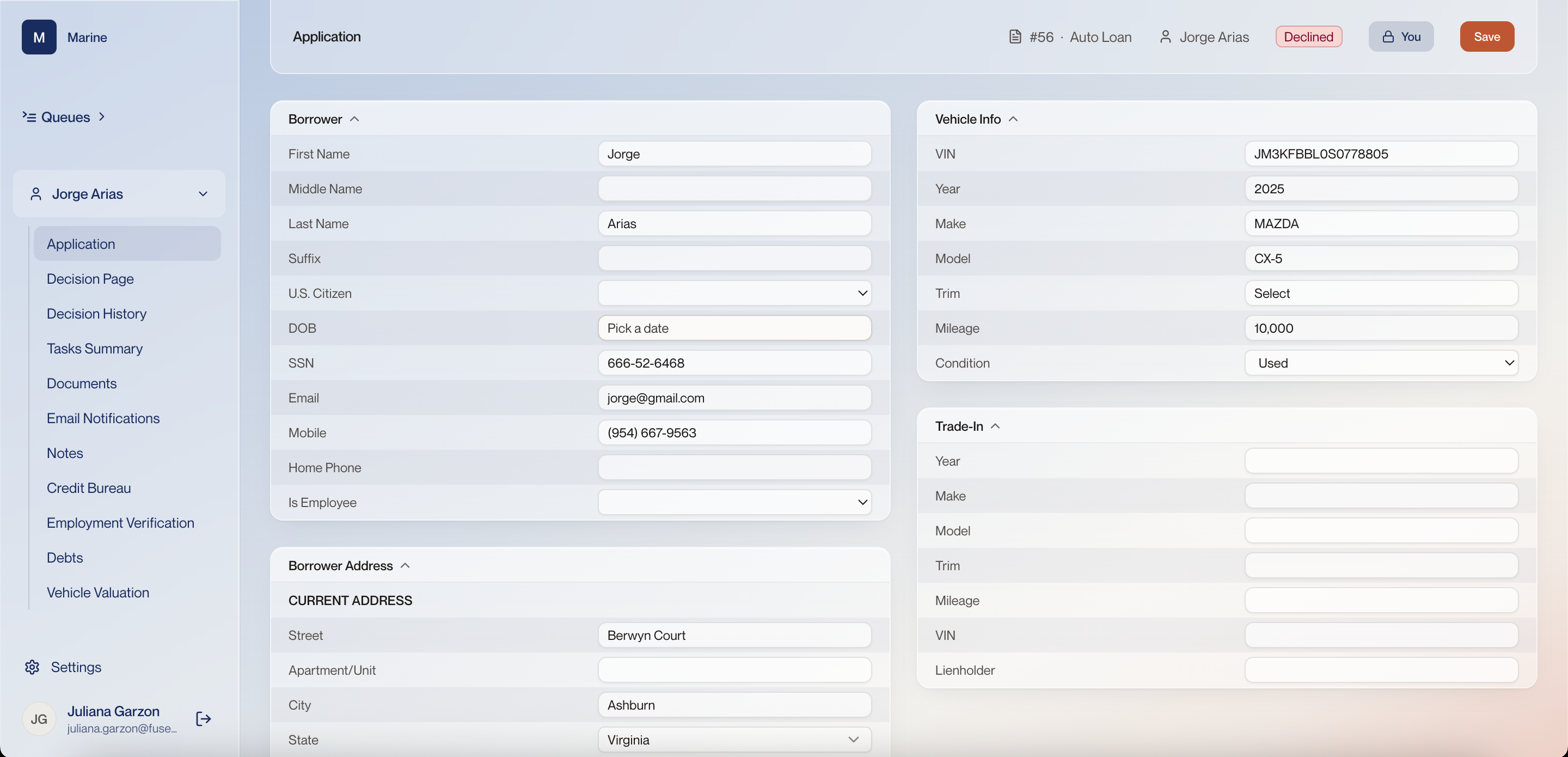
Application (indirect) 1 Number and product The header names the file you are in: application number and product. It follows you across every page of the application. Two applications from the same person look identical everywhere else. The number in the header is what tells you which one you are about to change. 2 Name and +1 The applicant name, and beside it a +1 badge when the file carries a co-borrower. Hover the badge and the co-borrower's name appears without opening any page; the same badge appears on the queue rows, with the same meaning. The badge is how you know a file has two people on it before you open it, and two people means two credit pulls and two tiers. 3 Status The current status of the application, shown on every page and set from this control. The status is the fastest way to know whether you are looking at live work or a finished file — and a finished file can still be opened and read. 4 Padlock An application is locked while someone is working it, and the badge on the padlock names who. The padlock button is how you unlock it so the fields can be edited again. Locking is what stops two people from typing into the same file at once. Unlocking is a deliberate act, not something that happens when you click into a field. Watch out: If a name other than yours is showing, that person is in it. A lock releases itself after 30 minutes, so waiting is an option as well as messaging them. 5 Save Save writes what you changed in the header, including a status you picked from the control beside it. Nothing you set in the header counts until Save — a decision left unsaved is a decision nobody else can see. 6 Borrower The applicant as the dealer submitted them: name, U.S. Citizen, date of birth, SSN, email, mobile, home phone, whether they are an employee, member type and member account number. Identity and age fields feed the automated rules, and membership decides whether a “become a member” condition lands at funding. A field left unset is not the same as a field answered No. Watch out: On an indirect file these values came from the dealer, not from the applicant sitting in front of you. Read them as submitted data that may need verifying. 7 Borrower Address The current address under a CURRENT ADDRESS heading, with time at residence, housing type and housing payment, and a PREVIOUS ADDRESS section below it. Where the applicant lives is where any notice about this application is sent, and the housing payment is an obligation the ratios are built from. 8 Borrower Employment Current employment with employment status, any other income and its source, and a total income figure, with past employment underneath. Total income here is the denominator of the ratios on the Decision page. If it looks wrong, the DTI reading downstream is wrong with it. 9 Vehicle Info The collateral: VIN, year, make, model, trim, mileage and condition. The VIN and condition are what a valuation is run from. Wrong condition and the collateral is valued as a different car. 10 Trade-In Where a vehicle being traded in would be described, down to the lienholder. Every field empty means there is no trade-in. With no trade-in there is nothing reducing the amount financed, so the whole balance stands against the purchased vehicle alone. 11 Application navigation The pages of one application: Application, Decision Page, Decision History, Tasks Summary, Documents, Email Notifications, Notes, Credit Bureau, Employment Verification, Debts and Vehicle Valuation. This nav stays with the file. A decline is worked across several of these pages, and moving between them does not change the application. Application 1 #56 · Auto Loan · Jorge Arias The header names the file you are in: application number, loan type and applicant. It follows you across every page of the application. Two applications from the same person look identical everywhere else. The number in the header is what tells you which one you are about to change. 2 Declined pill The current status of the application, shown on every page. Here it reads Declined, so the decision has already been recorded. You can still open and read a declined application. The status is the fastest way to know whether you are looking at live work or a finished file. 3 You badge and the padlock button An application is locked while someone is working it. The “You” badge says it is locked to you, and the padlock button next to Save is how you unlock it so the fields can be edited again. Locking is what stops two people from typing into the same file at once. Unlocking is a deliberate act, not something that happens when you click into a field. Watch out: If a name other than yours is showing, that person is in it. A lock releases itself after 30 minutes, so waiting is an option as well as messaging them. 4 Save Writes the changes you made on this page to the application. Nothing you type on the Application page is kept until this is pressed. Moving to another page in the left nav does not save it for you. 5 Borrower The applicant as they were entered: name, U.S. Citizen, date of birth, SSN, email, mobile, whether they are already a member — and if so the account number they hold in Marine's own system — and whether they are an employee. Membership decides whether a “become a member” stipulation lands on the file at funding. Age and identity fields feed the automated rules: on #56 the DOB still reads “Pick a date”, and the rules already flagged age. Watch out: Is Employee is a real underwriting flag, not an administrative note. Leaving it unset is not the same as answering No. 6 Borrower Address The current address on file — street, unit, city and state — under a CURRENT ADDRESS heading, so more than one address can be held. Where the applicant lives is where any notice about this application would be sent. It is worth reading even when you are declining. 7 Vehicle Info The collateral: VIN, year 2025, MAZDA CX-5, mileage 10,000 and condition Used. Trim is still unset. The VIN and condition are what a valuation is run from. Wrong condition and the collateral is valued as a different car. 8 Trade-In Where a vehicle being traded in would be described. On #56 every field is empty, so there is no trade-in. An empty Trade-In card means the whole amount is being financed against the purchased vehicle alone. 9 Application navigation The pages of one application: Application, Decision Page, Decision History, Tasks Summary, Documents, Email Notifications, Notes, Credit Bureau, Employment Verification, Debts and Vehicle Valuation. This nav stays with the file. A decline is worked across several of these pages, and moving between them does not change the application.